Unlocking Your LG Smart TV: A Comprehensive Guide to Installing Third-Party Applications
So, You Want to Install Third-Party Apps on Your LG Smart TV? Let's Talk About It.
Hey there! If you’re like me, you probably got a fantastic LG Smart TV with its sleek WebOS interface, enjoyed the beautiful picture, and then thought, “Okay, what about all those cool apps I use on my phone or other devices that aren't in the LG Content Store?” It’s a common question, and honestly, it's a bit more nuanced than just 'downloading an APK' like you might on an Android phone. LG's WebOS is a powerful operating system, but it's also a closed ecosystem, which means direct sideloading of unapproved applications isn't really a thing for the average user. Don't worry, though; I’m here to walk you through the realities and the best workarounds.
Understanding the LG WebOS Ecosystem
First off, let’s get this straight: LG’s WebOS is designed for security and stability. Unlike open platforms like Android TV, you can't just download an app from a random website and install it. LG controls the apps available through its official storefront, the LG Content Store. This approach significantly reduces the risk of malware and ensures apps are optimized for your TV. That's a good thing, right? But it does mean if an app isn't in that store, you'll need to get a bit creative.
Method 1: The Official LG Content Store – Your First Stop
Before we dive into alternative solutions, let's make absolutely sure the app you're looking for isn't already available officially. You’d be surprised how many “third-party” apps are actually just well-known services that LG has partnered with.
- Navigate to the Home Screen: Press the Home button on your Magic Remote.
- Find the LG Content Store: Look for the bright red bag icon, usually labeled “LG Content Store.” Click on it.
- Search or Browse: Use the search function (magnifying glass icon) to type in the name of the app you want. Alternatively, browse categories like “Movies & TV Shows,” “Games,” or “Lifestyle.”
- Install the App: If you find your app, simply click on it and select “Install.” It’s that easy!
Seriously, check here first. You might save yourself a lot of hassle. Many popular streaming services, social media apps, and utility apps are right there.
Method 2: Screen Mirroring and Casting – Your Go-To Workaround
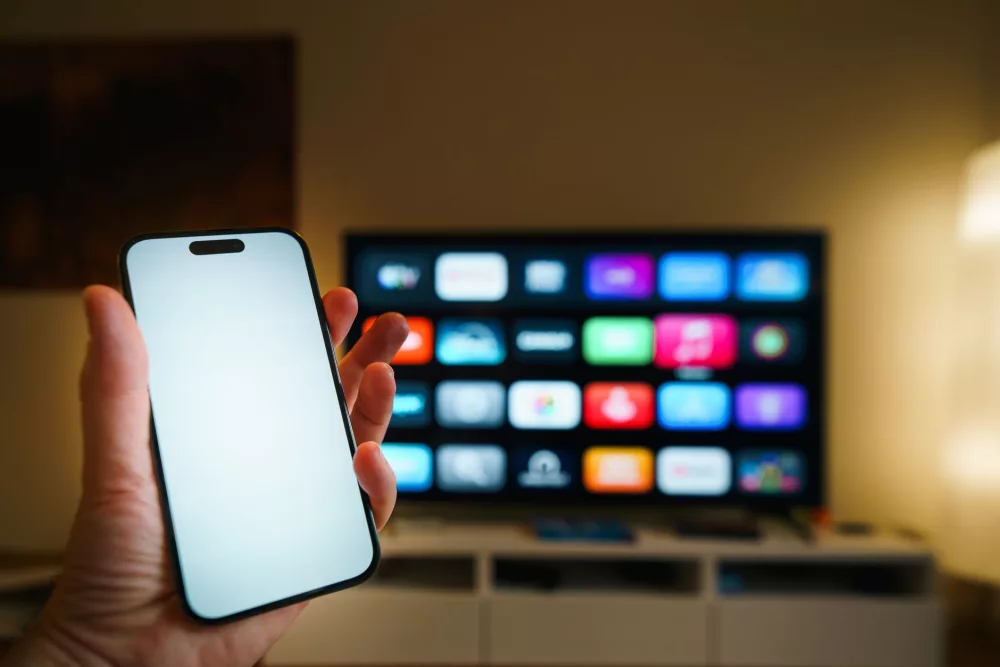
When an app isn’t on WebOS, the most straightforward and common solution is to simply send content from another device to your TV. LG Smart TVs are fantastic at this!
Casting from Your Smartphone (Android or iOS)
Your LG TV supports various casting protocols, making it super convenient. You’ve got a couple of options here:
- For Android Devices (Miracast/Screen Share):
Most Android phones have a built-in screen mirroring feature (often called “Smart View,” “Screen Cast,” “Wireless Display,” or “MirrorShare”).- On your LG TV, go to the Home Dashboard and select “Screen Share” or “Miracast.”
- On your Android phone, swipe down to open the Quick Settings panel.
- Find and tap the “Smart View,” “Cast,” or “Screen Mirroring” icon.
- Select your LG TV from the list of available devices.
- Voila! Whatever is on your phone's screen will now be on your TV. Open the app you want on your phone, and it’ll display on your LG TV.
- For Apple Devices (AirPlay 2):
Newer LG Smart TVs (2018 models and later, sometimes with firmware updates) support Apple AirPlay 2, which is brilliant for iOS users.- Make sure both your iPhone/iPad and your LG TV are connected to the same Wi-Fi network.
- On your TV, go to the Home Dashboard and select “AirPlay.” You might need to enable it in settings the first time.
- On your iPhone/iPad, open Control Center (swipe down from the top-right corner on newer iPhones, or up from the bottom on older ones).
- Tap the “Screen Mirroring” icon (two overlapping rectangles).
- Select your LG TV from the list. If prompted, enter the AirPlay passcode displayed on your TV.
- Now you can mirror your entire screen or cast content directly from AirPlay-enabled apps.
Casting from Your Computer
If you're using a PC or Mac, you've got options too:
- Using Google Chrome (for PC/Mac):
If you want to show a web page or even cast video from a Chrome tab, this is incredibly easy.- Open Google Chrome on your computer.
- Click the three vertical dots (Menu) in the top-right corner.
- Select “Cast…”
- Choose your LG TV from the list of devices. You can choose to cast a specific tab, your desktop, or a file.
- Using AirPlay from Mac:
Similar to iOS, if your Mac and LG TV support AirPlay 2, you can cast your Mac’s screen or specific video content.- On your Mac, click the “Control Center” icon in the menu bar.
- Click “Screen Mirroring.”
- Select your LG TV.
Method 3: External Streaming Devices – The Ultimate Solution for App Variety
Let's be real: sometimes casting just isn't enough. Maybe you want a dedicated interface, don't want to tie up your phone, or need access to a wider range of apps natively. This is where external streaming devices shine. This is arguably the *best* way to get true “third-party” app functionality on your LG TV.
- Amazon Fire TV Stick/Cube: These popular devices run Amazon's Fire OS, which is based on Android. This means you get access to a vast array of Android apps, and you can even sideload APKs quite easily. Just plug it into an HDMI port on your LG TV, and you're good to go.
- Roku Devices (Stick, Express, Ultra): Roku offers a massive library of channels (apps). It’s another fantastic plug-and-play option that grants you access to almost anything you could want.
- Google Chromecast with Google TV: This device essentially turns any TV into an Android TV, giving you direct access to the Google Play Store and all its apps. It also has Google Cast built-in, naturally.
- Apple TV: For those fully entrenched in the Apple ecosystem, the Apple TV box gives you access to the tvOS App Store, which has a curated selection of apps optimized for TV viewing.
- NVIDIA Shield TV: A more premium Android TV box, fantastic for gaming and high-performance streaming.
With any of these, you're essentially bypassing WebOS for app access. Your LG TV becomes a high-quality display for a different operating system, giving you all the apps those platforms offer. It's truly a game-changer if you’re feeling limited by WebOS.
Method 4: Using the Built-in Web Browser (Limited Use)
Your LG TV has a built-in web browser, and sometimes, for certain services, this can be a simple solution. If an app doesn’t exist but the service has a well-designed mobile-friendly website, you can often access it directly through the browser. It's not always ideal for video playback or complex interfaces, but for quick checks or simpler web-based content, it can work in a pinch.
- Access the Browser: Find the “Web Browser” app on your Home screen.
- Type in the URL: Use your Magic Remote to type in the website address of the service you want to use.
- Browse Away: Navigate the site as you would on a computer.
Remember, this isn't installing an app; it's just accessing a website. It's a different experience, but sometimes it gets the job done.
Method 5: Developer Mode (Not for General App Installation)
I feel it's important to mention Developer Mode because you might come across it while researching. LG Smart TVs do have a
About Editorial Team
Senior columnist and culture critic specializing in architectural designs, emerging high-growth systems, and contemporary philosophies.
Contact Desk
Have an editorial inquiry or custom partnership idea? Reach our team directly.